
Introduction
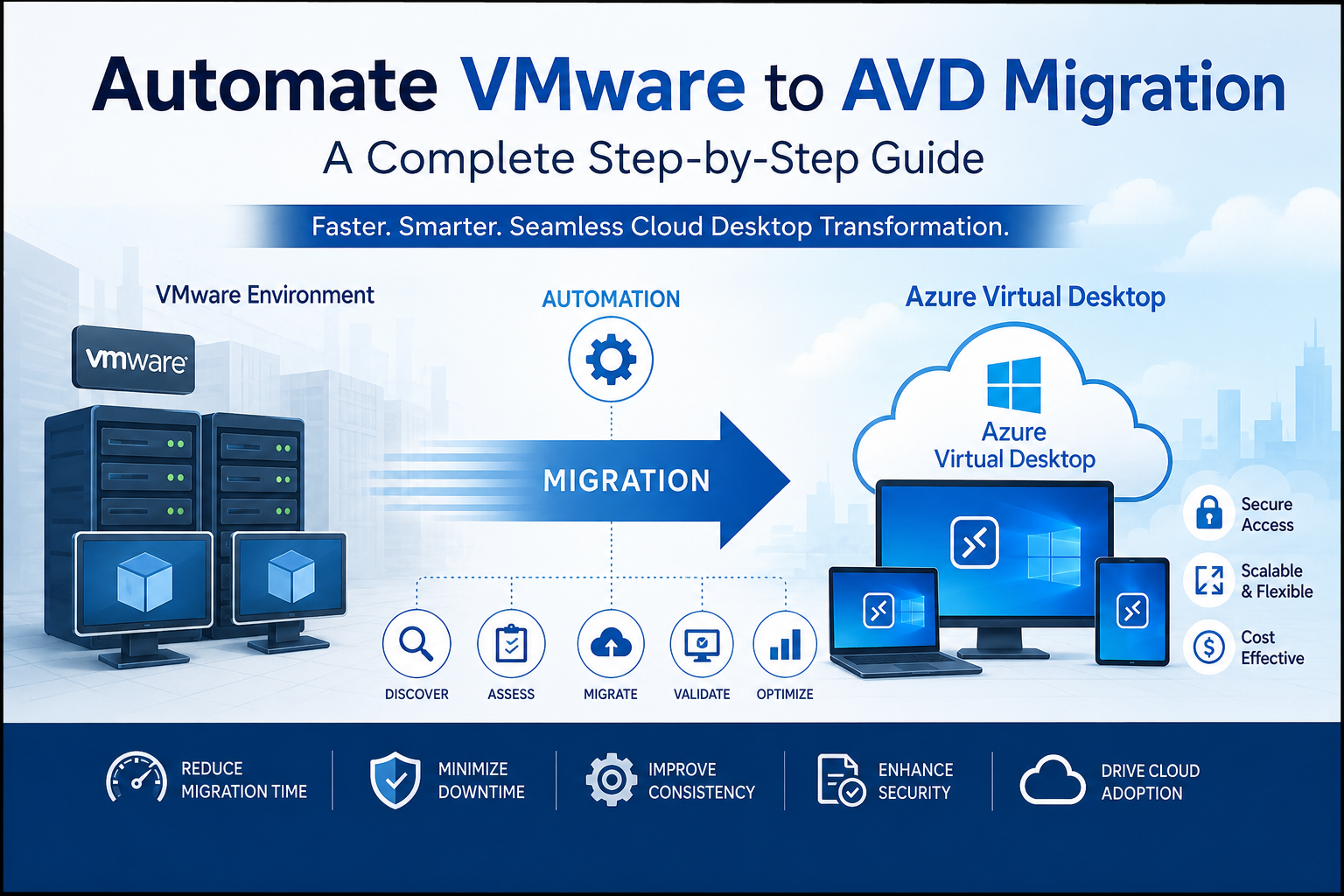
As organizations continue shifting toward cloud-first strategies, many IT teams are looking for efficient ways to modernize their virtual desktop environments. One of the most effective approaches is to automate VMware to AVD migration, reducing manual effort while improving speed, consistency, and scalability. Instead of rebuilding every virtual machine by hand, automation streamlines the migration process, minimizes downtime, and lowers the risk of human error.
Whether you’re moving from VMware Horizon or another VMware-based infrastructure, Azure Virtual Desktop (AVD) offers improved flexibility, centralized management, and seamless integration with Microsoft’s cloud ecosystem. In this guide, you’ll learn why automation matters, the tools available, the migration process, common challenges, and best practices for a successful transition.
Why Businesses Are Choosing Azure Virtual Desktop
Cloud adoption has accelerated rapidly over the past few years, and virtual desktop infrastructure (VDI) is no exception. Azure Virtual Desktop provides organizations with a secure, scalable, and cost-effective alternative to traditional on-premises VMware environments.
Unlike legacy infrastructure that requires ongoing hardware investments, AVD operates entirely in Microsoft Azure. Businesses can scale resources up or down depending on demand while only paying for what they use. This flexibility helps reduce operational expenses and simplifies IT management.
Another major advantage is seamless integration with Microsoft services such as Azure Active Directory, Microsoft Intune, Microsoft Defender, and Microsoft 365. These integrations improve identity management, endpoint security, and overall user productivity.
Organizations also benefit from enhanced remote work capabilities. Employees can securely access desktops and applications from almost anywhere without compromising security or performance.
As more companies embrace hybrid work models, choosing to automate VMware to AVD migration becomes a practical way to modernize IT infrastructure while minimizing disruptions to daily operations.
Benefits of Automating VMware to AVD Migration
Manual migration projects often consume weeks or even months of IT resources. Every virtual machine, application, and user profile must be configured individually, increasing both workload and the chance of mistakes.
Automation changes this dramatically.
Using automation tools allows administrators to replicate configurations, migrate workloads, and deploy Azure Virtual Desktop resources consistently across hundreds or thousands of users. This results in predictable deployments and faster project completion.
Key benefits include:
- Reduced migration time
- Lower operational costs
- Minimal downtime for employees
- Improved consistency across deployments
- Reduced human errors
- Easier rollback if issues occur
- Better compliance and documentation
Automation also enables repeatable workflows. If additional departments or offices need migration later, the same scripts and templates can be reused with minimal adjustments.
Organizations managing enterprise-scale VMware environments especially benefit because automated migration significantly reduces administrative overhead while maintaining service quality throughout the transition.
Tools That Help Automate VMware to AVD Migration
Several Microsoft and third-party tools simplify migration from VMware environments to Azure Virtual Desktop. Choosing the right combination depends on your organization’s size, existing infrastructure, and migration goals.
Azure Migrate
Azure Migrate is Microsoft’s primary migration platform. It discovers VMware virtual machines, assesses compatibility, estimates Azure costs, and automates server replication into Azure.
Azure Site Recovery
Azure Site Recovery enables continuous replication of VMware virtual machines while minimizing downtime during cutover.
Azure Image Builder
Instead of manually creating desktop images, Azure Image Builder automates the creation, customization, and deployment of standardized images.
Azure Automation
Azure Automation helps schedule repetitive administrative tasks using PowerShell runbooks and automation accounts.
Microsoft Intune
Once desktops are deployed, Intune simplifies endpoint configuration, policy enforcement, software deployment, and device management.
Infrastructure as Code (IaC)
Tools such as ARM templates, Bicep, and Terraform automate the deployment of Azure resources. Infrastructure becomes version-controlled, repeatable, and easier to maintain.
Combining these tools creates an efficient migration pipeline that significantly reduces manual intervention.
Best Practices for a Successful Migration
Planning is the foundation of every successful migration project. Before moving workloads, organizations should conduct a complete assessment of their VMware environment.
Start by identifying:
- Existing virtual machines
- User workloads
- Business-critical applications
- Storage requirements
- Network dependencies
- Licensing considerations
Next, perform application compatibility testing. Some legacy software may require updates or modifications before running efficiently within Azure Virtual Desktop.
User profile migration is another critical area. Solutions like FSLogix make profile management significantly easier by preserving user settings across sessions.
Security should remain a priority throughout the migration. Implement Azure security features including:
- Multi-factor authentication
- Conditional Access
- Microsoft Defender
- Role-Based Access Control (RBAC)
- Azure Backup
Finally, migrate users in phases instead of moving everyone simultaneously. Pilot groups allow IT teams to identify issues early before expanding deployment across the organization.
Continuous monitoring after migration helps optimize performance and control Azure costs over time.
Common Challenges and How to Overcome Them
Even with automation, VMware-to-AVD migrations can present challenges. Understanding these obstacles beforehand helps reduce project risks.
One common issue is application compatibility. Legacy applications designed for on-premises environments may require testing, updates, or virtualization before deployment.
Bandwidth limitations can also slow data replication, particularly for organizations with large virtual machine inventories. Scheduling replication during off-peak hours helps reduce network congestion.
Cost management is another concern. Without proper planning, Azure resources may remain oversized after migration. Azure Cost Management tools help monitor resource consumption and optimize spending.
User adoption can also become an obstacle. Employees accustomed to VMware desktops may require training before transitioning to Azure Virtual Desktop.
Configuration inconsistencies occasionally appear during migration. Automated scripts, Infrastructure as Code, and standardized images greatly reduce these issues by ensuring every deployment follows the same configuration.
By proactively addressing these challenges, organizations can complete migration projects faster while maintaining business continuity.
Conclusion
Choosing to automate VMware to AVD migration allows organizations to modernize their virtual desktop infrastructure with greater speed, consistency, and efficiency. Automation minimizes manual work, reduces downtime, improves security, and simplifies long-term management. With tools like Azure Migrate, Azure Automation, Infrastructure as Code, and Azure Virtual Desktop, businesses can confidently transition from legacy VMware environments to a flexible cloud-based platform. Careful planning, phased deployments, and ongoing optimization ensure that your migration delivers long-term value while supporting future business growth.
FAQs
What does automate VMware to AVD migration mean?
It refers to using automation tools and scripts to move VMware virtual desktops and workloads to Azure Virtual Desktop with minimal manual effort.
Which Microsoft tool is best for VMware migration?
Azure Migrate is Microsoft’s recommended service for assessing, replicating, and migrating VMware virtual machines into Azure.
Can user profiles be migrated to Azure Virtual Desktop?
Yes. Solutions like FSLogix preserve user profiles and settings, providing a seamless experience after migration.
Is Azure Virtual Desktop more cost-effective than VMware?
For many organizations, Azure Virtual Desktop reduces infrastructure and maintenance costs by replacing on-premises hardware with scalable cloud resources.
How long does a VMware to AVD migration take?
The timeline depends on the environment size, application complexity, and network capacity. Automation significantly shortens the overall migration process.
