
Introduction
If you’ve ever found yourself stuck because you forgot screen time passcode, you’re definitely not alone. It’s one of those small but frustrating issues that can quickly become a big headache—especially if it’s preventing you from accessing apps, changing settings, or managing your device properly. Whether you set the passcode a long time ago or someone else configured it for you, forgetting it can leave you feeling locked out of your own device.
The good news? You don’t have to panic. There are several effective and safe ways to reset or recover your Screen Time passcode without causing unnecessary trouble. In this guide, we’ll walk you through everything you need to know—from simple fixes to more advanced solutions—so you can regain control quickly and easily.
What Is Screen Time Passcode and Why It Matters
Forgot Screen Time Passcode, Screen Time is a built-in feature designed to help you manage device usage, set app limits, and control content restrictions. The passcode acts as a protective layer, ensuring that only authorized users can change these settings.
When you set a Screen Time passcode, it becomes separate from your device’s lock screen passcode. This is important because even if someone knows your phone unlock code, they still won’t be able to bypass Screen Time restrictions.
But here’s where the issue starts—if you forget this passcode, you won’t be able to adjust settings like app limits, downtime schedules, or content restrictions. This can be especially inconvenient for parents managing kids’ devices or for users trying to modify their own usage settings.
The passcode is tied to your Apple ID if you enabled passcode recovery during setup. If not, things can get a bit trickier. That’s why understanding how Screen Time works—and how its security is structured—can make a big difference when you’re trying to fix the problem.
How to Reset Screen Time Passcode Using Apple ID
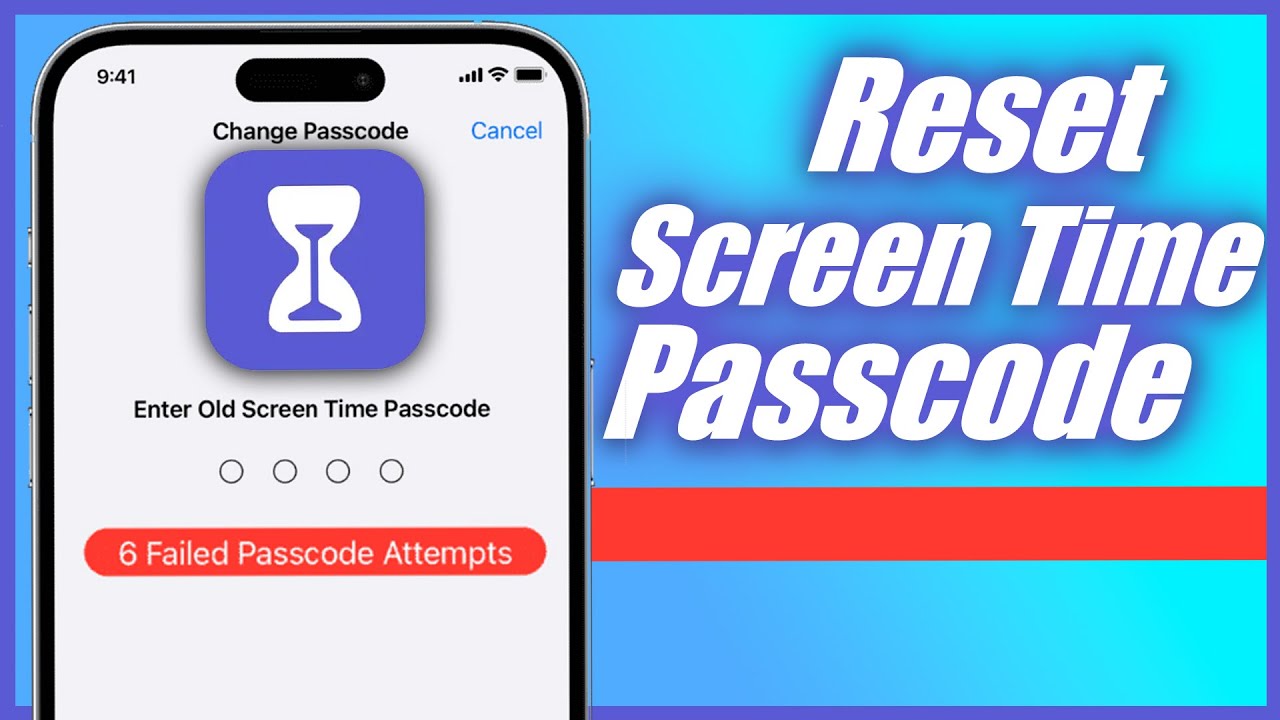
The easiest solution when you’ve forgot screen time passcode is to reset it using your Apple ID. This method only works if you previously enabled the “Forgot Passcode” option during setup.
Here’s how you can do it:
- Go to Settings on your device
- Tap Screen Time
- Select Change Screen Time Passcode
- Tap Forgot Passcode?
- Enter your Apple ID and password
Once you’ve verified your credentials, you’ll be able to set a new passcode. It’s quick, secure, and doesn’t require any data loss.
This is by far the best method because it keeps everything intact—your apps, data, and settings remain unchanged. If you’re someone who regularly forgets passwords, it’s always a good idea to ensure your Apple ID is linked for recovery.
If this option doesn’t appear on your device, don’t worry—there are still other methods you can try.
Resetting Screen Time Passcode Without Apple ID
If you didn’t enable Apple ID recovery, you’ll need to take a different approach. When you’ve truly forgot screen time passcode and can’t reset it through standard options, a full device reset may be required.
Before you proceed, make sure to back up your data using iCloud or a computer. This step is crucial because resetting your device will erase everything.
Steps to reset your device:
- Go to Settings > General
- Scroll down and tap Transfer or Reset iPhone
- Select Erase All Content and Settings
- Confirm your choice
After the reset, you can set up your device as new or restore from a backup. However, here’s the important part—if your backup includes the old Screen Time passcode, the issue might persist.
To avoid this, you may need to set up your device as a new one and manually reinstall apps. It’s not the most convenient solution, but it’s effective when other options aren’t available.
Think of this as a last resort when you’re completely locked out.
Using a Computer or Third-Party Tools
Another option when dealing with a forgotten Screen Time passcode is to use a computer or specialized tools. These methods are often used by people who want to avoid a full reset.
Some software solutions claim to remove Screen Time passcodes without data loss. While this can sound appealing, you should proceed with caution. Always use trusted tools and avoid anything that looks suspicious or requires unnecessary permissions.
Alternatively, you can use a computer with iTunes or Finder:
- Connect your device to your computer
- Put the device into recovery mode
- Restore it using iTunes or Finder
This method is similar to a factory reset but is done externally. It can be useful if your device is unresponsive or if settings are locked.
Keep in mind that Apple doesn’t officially recommend third-party tools, so it’s best to rely on built-in methods whenever possible. Still, for advanced users, these options can provide a workaround.
Tips to Avoid Forgetting Your Screen Time Passcode Again
Once you’ve regained access, the last thing you want is to go through the same frustration again. Luckily, there are a few simple habits you can adopt to prevent this issue in the future.
First, always link your Screen Time passcode to your Apple ID. This gives you a built-in recovery option and saves a lot of stress later.
Second, choose a passcode that’s easy for you to remember but hard for others to guess. Avoid using random numbers you won’t recall after a few days.
You can also store your passcode securely in a password manager. This way, even if you forget, you’ll have a backup stored safely.
Finally, write it down and keep it in a secure place if needed. It might sound old-school, but it works.
By taking these precautions, you’ll ensure that forgetting your Screen Time passcode becomes a thing of the past.
Conclusion
Dealing with a situation where you’ve forgot screen time passcode can be frustrating, but it’s far from impossible to fix. Whether you use your Apple ID for a quick reset, perform a full device restore, or explore alternative methods, there’s always a way to regain control.
The key is to choose the method that best fits your situation while keeping your data safe. And once you’re back in, take a few extra steps to secure your passcode and enable recovery options.
With the right approach, you’ll not only solve the problem but also make sure it doesn’t happen again anytime soon.
FAQs
Can I reset Screen Time passcode without losing data?
Yes, if you linked it with your Apple ID, you can reset it without losing any data.
What happens if I restore from backup?
If the backup includes the old passcode, the issue may return. Setting up as a new device avoids this.
Is there any official way to bypass Screen Time passcode?
No, Apple doesn’t allow bypassing it without proper authentication for security reasons.
Are third-party tools safe to use?
Some are safe, but you should only use trusted and well-reviewed tools to avoid risks.
How do I prevent forgetting my passcode again?
Link it to your Apple ID, use a memorable code, and store it securely in a password manager.
