
Introduction
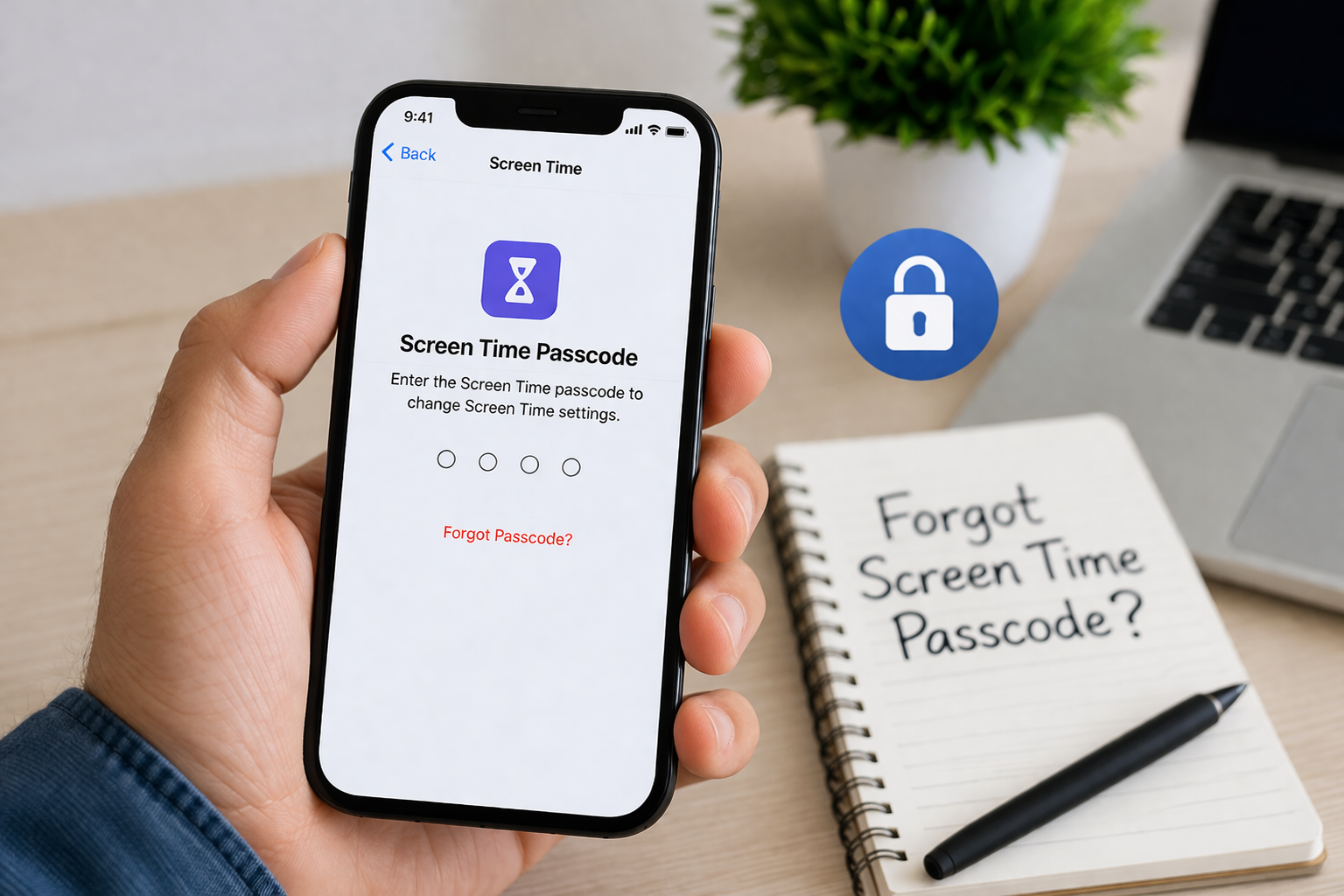
For many iPhone and iPad users, Screen Time is a helpful tool that keeps track of app usage and helps manage digital habits. Parents also use it to control what their children can access on their devices. However, things can quickly become frustrating if you forgot Screen Time passcode and suddenly can’t change settings or remove restrictions.
This situation is more common than you might think. Whether the passcode was set months ago, changed accidentally, or created by someone else in the family, being locked out can feel inconvenient. The good news is that Apple provides several ways to recover or reset the passcode safely.
In this guide, you’ll learn practical methods to regain access if you forgot Screen Time passcode. We’ll explore built-in recovery options, Apple ID solutions, and other effective methods to restore control of your device without unnecessary stress.
Why the Screen Time Passcode Is Important
Before diving into recovery solutions, it’s useful to understand why Screen Time passcodes exist and how they protect device settings.
The Screen Time passcode is designed to prevent unauthorized changes to usage restrictions and parental controls. When enabled, it locks certain settings such as app limits, content restrictions, downtime schedules, and privacy settings. This makes it particularly useful for parents who want to manage their children’s device activity.
If you forgot Screen Time passcode, you might notice several limitations. For example, you won’t be able to modify app limits, turn off Screen Time, or adjust content restrictions. In some cases, you might also be prevented from installing or deleting apps depending on how the restrictions were configured.
Apple intentionally keeps this passcode separate from the device unlock passcode for security reasons. That means resetting your phone passcode won’t automatically reset the Screen Time passcode.
While this extra security is helpful, it also means forgetting the code can temporarily lock you out of key settings. Thankfully, Apple anticipated this issue and added recovery options that allow users to reset the passcode using their Apple ID.
Understanding how these systems work will make it easier to choose the right method to regain access.
Resetting the Passcode Using Your Apple ID
The easiest and most reliable solution if you forgot Screen Time passcode is resetting it through your Apple ID.
Apple introduced a recovery feature that allows users to reset the passcode directly from the device settings. This method works if Screen Time was originally configured with an Apple ID for recovery.
Here’s how you can reset it:
- Open Settings on your iPhone or iPad
- Tap Screen Time
- Select Change Screen Time Passcode
- Tap Change Screen Time Passcode again
- Choose Forgot Passcode?
- Enter your Apple ID and password
- Set a new Screen Time passcode
Once completed, your new passcode replaces the old one immediately.
This method is quick and secure because Apple verifies your identity using your Apple account credentials. It’s also the safest option since it doesn’t require third-party tools or device resets.
However, if the Screen Time feature was originally set up without linking an Apple ID, the recovery option might not appear. In that case, you’ll need to explore alternative solutions, which we’ll discuss in the next sections.
Restoring Your Device Through Backup
If Apple ID recovery isn’t available and you forgot Screen Time passcode, restoring your device through a backup might help.
This method works best if you have an older backup created before Screen Time was enabled or before the passcode was changed. By restoring that backup, the device settings—including Screen Time restrictions—may revert to the earlier state.
To try this approach:
- Connect your device to a computer
- Open Finder (Mac) or iTunes (Windows)
- Select your device
- Click Restore Backup
- Choose a backup created before the Screen Time passcode was set
After the restoration process finishes, check the Screen Time settings again.
While this solution can work, there are a few important considerations. First, restoring a backup may replace recent data such as new photos, apps, or messages. Second, if the backup already contains the Screen Time passcode, the issue will remain.
Because of these limitations, this method is usually recommended only if you have a reliable earlier backup available.
Still, it remains a legitimate solution when other reset methods are unavailable.
Using Device Reset as a Last Resort
When all other options fail and you forgot Screen Time passcode, a full device reset may become the last available option.
A factory reset removes all data and settings from your iPhone or iPad, including the Screen Time passcode. After the reset, you can set up the device again as new or restore it from a backup.
Here’s how the process works:
- Open Settings
- Tap General
- Scroll to Transfer or Reset iPhone
- Tap Erase All Content and Settings
- Confirm your decision
Once the device restarts, you can set it up again from scratch.
Although this method removes the passcode, it should only be used when absolutely necessary. Since the reset deletes all data, it’s important to back up your device beforehand if possible.
Additionally, if you restore from a backup that includes the Screen Time settings, the passcode might return. To avoid this, you may need to configure the device as new.
Because of the inconvenience involved, this solution is typically considered a final step rather than a first choice.
How to Prevent Forgetting the Passcode Again
After regaining access, it’s smart to take a few steps to ensure you don’t forget the passcode again.
First, always enable Apple ID recovery when setting up Screen Time. This allows you to reset the passcode easily if you forget it in the future.
Second, consider storing important passcodes in a secure password manager. Many people rely on memory alone, which increases the risk of forgetting codes over time.
Another helpful strategy is using a passcode pattern that’s meaningful but not obvious. For example, you might combine numbers related to a memorable date that others wouldn’t easily guess.
If you manage Screen Time for children’s devices, it’s also useful to document the passcode somewhere secure so both parents can access it if needed.
Taking these precautions will save time and frustration later, especially if you frequently adjust Screen Time settings for multiple devices.
Conclusion
Forgetting a passcode can be frustrating, but it doesn’t have to be a permanent problem. If you forgot Screen Time passcode, several reliable solutions can help you regain control of your device. Resetting it through your Apple ID is the fastest option, while restoring from backups or resetting the device can serve as alternatives when necessary.
Understanding how Screen Time works—and enabling recovery options—can make future access much easier. With the right approach, you’ll be able to manage device restrictions, adjust app limits, and maintain healthy digital habits without worrying about being locked out again.
FAQs
What happens if I forgot Screen Time passcode?
You may be unable to change Screen Time settings, remove restrictions, or turn off the feature until the passcode is reset.
Can I reset Screen Time passcode without losing data?
Yes. If the recovery option is enabled, you can reset it using your Apple ID without deleting any data.
Is the Screen Time passcode the same as the iPhone passcode?
No. Apple keeps the Screen Time passcode separate from the device unlock passcode for additional security.
Can I remove Screen Time without the passcode?
Usually no. You’ll need the passcode or Apple ID recovery method to disable Screen Time.
Does factory reset remove Screen Time passcode?
Yes. A factory reset erases all settings, including the Screen Time passcode, but it also deletes all device data.
